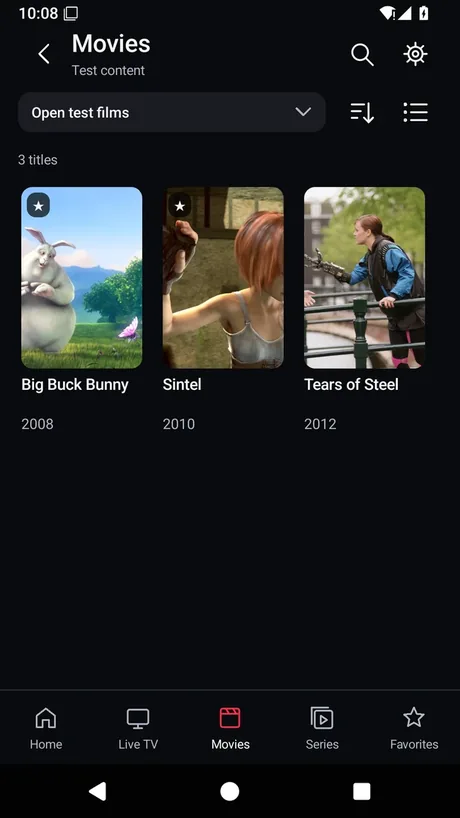
Browse your films
Open Movies to see titles from your source. This test library contains three open films. Your own selection depends on the catalogue you connect.

Real4K GO plays the channels, films and series supplied by your own provider. Bring an M3U playlist or Xtream account and browse your library on an Android phone, tablet or TV.
Test access is arranged through Real4K GO. The installation route depends on your device.
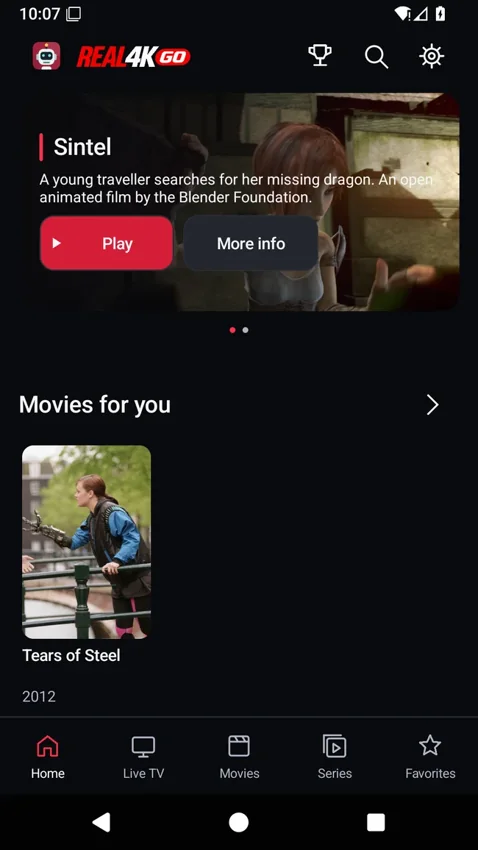
Using the player
Start in Settings → Content sources. Add the M3U address or the Xtream server and sign-in details from your provider. Once the catalogue loads, you can find a title by its poster. Read the source setup guide.
Open Movies to see titles from your source. This test library contains three open films. Your own selection depends on the catalogue you connect.
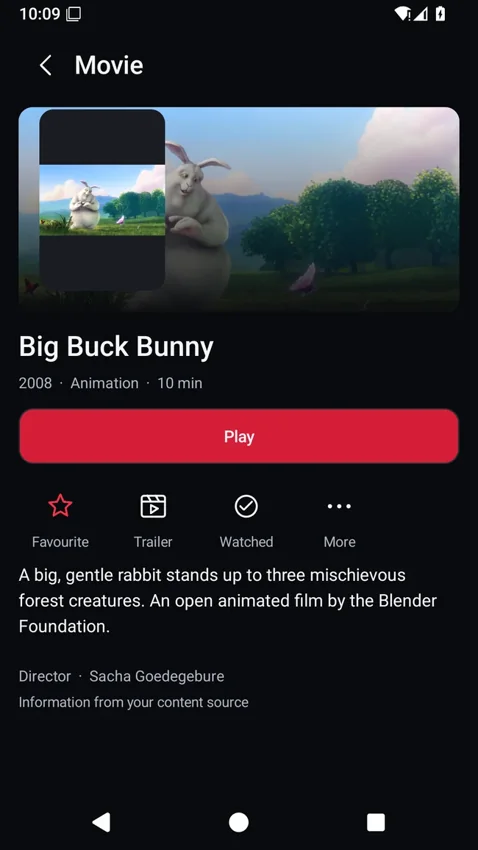
Open a poster to read the synopsis and check the running time. Press Play when you are ready. If tonight is too short for a film, save it for another evening.
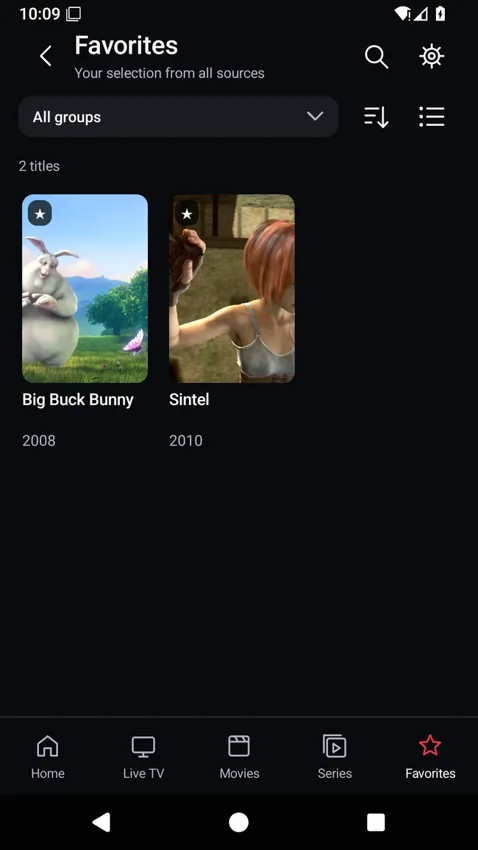
Open Favorites to find saved titles again. Use your own profile when you watch so that your favourites and viewing progress stay together.
At home
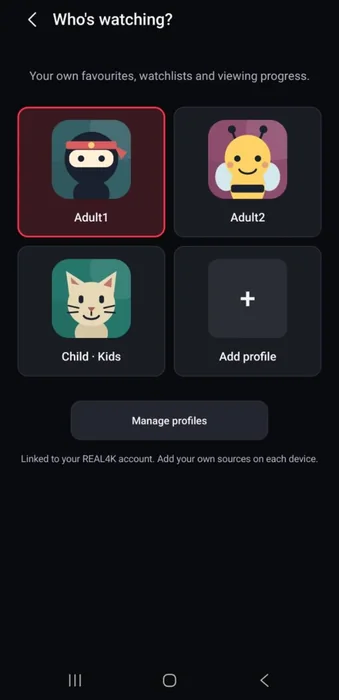
Open Live TV to choose a channel. The electronic programme guide (EPG) shows listings when your provider supplies them. Catch-up lets you return to an earlier broadcast on channels where your provider offers it. If programmes are missing, check the guide’s last update in Settings. Refreshing the film library is a separate action.
Open Series to choose an episode, then use the player’s audio and subtitle menu to see the tracks in that stream. You can leave partway through and return to your saved position. Available languages and playable formats depend on the title and your device.
A Guest can start watching without an account. Guest favourites and progress stay on that device. With a signed-in profile, supported favourites and progress can sync to another device using the same profile. Add the provider source on each device. For a Kids profile, a parent selects the titles the child can see.
Some Preview builds support casting to a compatible receiver. MultiView uses a connection for each stream. A recording also needs a connection, available storage and a device that can run at the scheduled time. Timeshift and recording options are still being tested across devices. Check your build before planning to record a match.
Read the Preview build notes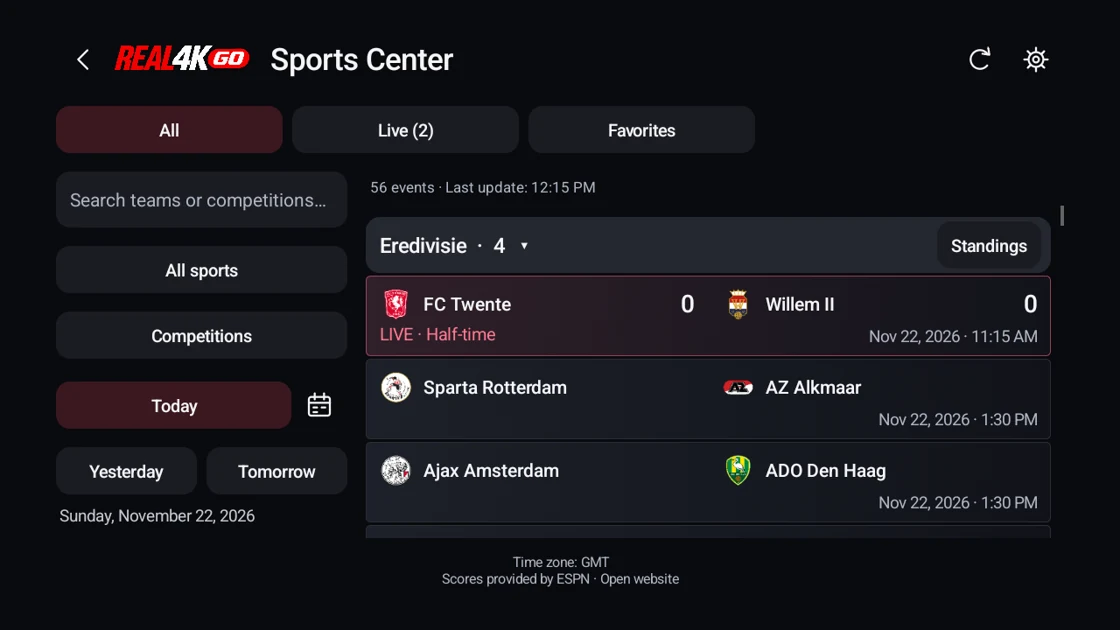
On the big screen
Sports Center brings fixtures, competitions and results into the TV interface. Use the remote to choose a sport or date, or follow a favourite team to narrow the list. Check the last update time when a match is in progress. To watch a broadcast, open a channel from your own source.
View official app screenshotsAway from home
In supported Next Preview builds, Premium lets you download an eligible film or episode from its detail screen. Start one download, wait until it finishes, then choose Play offline. If the app restarts during a download, open Downloads in Settings and choose Resume.
The app encrypts the file on that device. Use the original installation, account and profile to play it. Clearing the app’s data also clears the downloads. Leave enough free space and check your provider’s connection allowance if someone else is watching.
See offline formats and storage requirementsGuest includes basic playback. Premium adds ad-free use and supported offline downloads. Premium 1 and Premium 5 cover one or up to five assigned devices respectively. Your provider sets its own simultaneous-stream limit. Public purchases have yet to open.
The separate Cloud service for app data and backup is in development. Today, signing in can sync supported profile data. Moving a provider password between devices through Cloud is a planned feature.
Compare plans and availabilityBefore you start
Your provider supplies the channels and films. Real4K GO is the player. Ask your provider for an authorised playlist or Xtream account before adding the source.
Profiles keep favourites and viewing progress separate. Parents can choose which titles appear in a Kids profile.
Use the Android testing page and identify your device. The Real4K GO team provides the access and installation instructions for that test.
The browser tools can count entries and duplicates in M3U playlist text, separate the fields in a recognised Xtream playlist address, or help remove private details from a bug report. They process the text locally. Review the result before sharing it.
Open the local setup toolsInvited Android phone and tablet testers use the Google account named in their invitation. Android TV and Google TV testers get installation instructions from the team. Include the model and Android version when you ask. A smart TV may run a different operating system.
Check device compatibilityIf account sync or Sports Center stops updating, check the service status. If only one channel fails, try another title from the same source. For a report, note your device, build and the last step that worked. In supported builds, signed-in users can open a private ticket from Help.
Open playback and account help